Last updated: October 30, 2026
Quick answer: GarageBand on Mac adds vocal effects in two ways. Pick a ready-made voice patch in the Library, or open the track's Smart Controls, click Plug-ins and add effects one by one. Pitch correction gives the robotic sound, Channel EQ plus Overdrive gives the telephone sound, and Track Echo and Track Reverb add space. All of these are free and built in.
This guide shows how to add each effect, the start settings for the six most-searched vocal effects, and what to do when an effect sounds wrong. The steps are for GarageBand on Mac. We have not tested every step on iPhone and iPad, so check Apple's GarageBand help for the mobile versions. Menu and label names can differ a little between GarageBand versions.
Two ways to add vocal effects in GarageBand
- Voice patches (fastest). Select the vocal track and open the Library. Choose a patch from the voice category. A patch loads a full set of effects in one click. Use it as a start point, then change the settings.
- Plug-ins (most control). Open Smart Controls, click Plug-ins and add effects in the empty slots. The order matters: effects at the top of the list process the voice first.
Record your vocal dry first, then add effects. An effect on a dry recording can be changed or removed later. An effect printed into the recording cannot.
GarageBand vocal effects: settings table
Use these as start values. Change them by ear with the full beat playing.
| Effect | What to use in GarageBand | Start settings | Use it for |
|---|---|---|---|
| Robotic tuned voice | Pitch correction in the track editor | Set the song key, limit to key on, slider at its high end | Hooks and ad-libs in rap and pop |
| Telephone or radio | Channel EQ, then Overdrive or Bitcrusher | High-pass at about 400 Hz, low-pass at about 3 kHz, drive mix low | Intros, bridges, a second voice |
| Echo or slapback | Track Echo in Smart Controls, or a delay plug-in | Short time, low feedback, mix 10 to 20% | Width on a verse, end-of-line echoes |
| Reverb space | Track Reverb and Master Reverb in Smart Controls | Start low and raise until you just hear it | Singing, slow songs |
| Distorted or megaphone | Overdrive or Distortion, then Channel EQ | Drive low, high-pass at about 300 Hz | Rock hooks, shouted ad-libs |
| Double or wide vocal | A second recorded take on a new track | Pan the two takes about 30% left and right, double 6 to 8 dB under the lead | Choruses |
How to add each effect, step by step
1. The robotic tuned voice
- Set the project key in the display at the top of the window.
- Double-click the vocal region to open the track editor.
- Turn on the option that limits correction to the key.
- Move the pitch correction slider to its high end.
A wrong key is the most common cause of a bad result. For the full method, see is there Auto-Tune in GarageBand.
2. The telephone or radio voice
- Add Channel EQ in the first plug-in slot.
- Turn on the low cut and move it up to about 400 Hz.
- Turn on the high cut and move it down to about 3 kHz.
- Add Overdrive or Bitcrusher after the EQ, with the mix kept low.
The narrow band removes bass and air, so the voice sounds small and far away. Our phone effect vocals guide has more settings and variations.
3. Echo and reverb
In Smart Controls, raise the Track Echo and Track Reverb knobs. They send the vocal to the project's shared echo and reverb, so every track shares the same space. Keep echo short on rap and fast songs. Use more reverb on slow, sung parts. For exact delay times by tempo, use the reverb and delay settings cheat sheet.
4. Distorted or megaphone voice
Add Overdrive or Distortion, then Channel EQ after it. Start with the drive low. Cut the low end at about 300 Hz so the voice sounds thin and loud, like a megaphone. Use this effect on short parts. A full song with heavy distortion tires the listener.
5. Doubles
Copying a track does not make a real double. The two copies are the same, so they only make the voice louder. Record a second take of the same part on a new track, then pan the two takes apart. Small timing and pitch differences between the takes make the sound wide.
A clean chain under the effects
Creative effects sound better on top of a clean vocal. Before you add them, put a basic chain on the track in this order: Channel EQ with a low cut at 80 to 100 Hz, then a Compressor so loud words drop about 3 to 5 dB, then the effect. Our guide on how to mix vocals in GarageBand covers this chain in full.
When an effect sounds wrong
- The voice sounds harsh: lower the drive on Overdrive or Bitcrusher, or reduce the high cut on the EQ.
- The tuning warbles: check the project key, and lower the pitch correction slider.
- The words blur: lower the reverb and shorten the echo.
- The effect is too loud in the mix: lower the track volume after the effect, not the input level.
- The computer stutters: remove plug-ins you do not use, or raise the buffer size in GarageBand settings.
Ready-made vocal effect presets for GarageBand
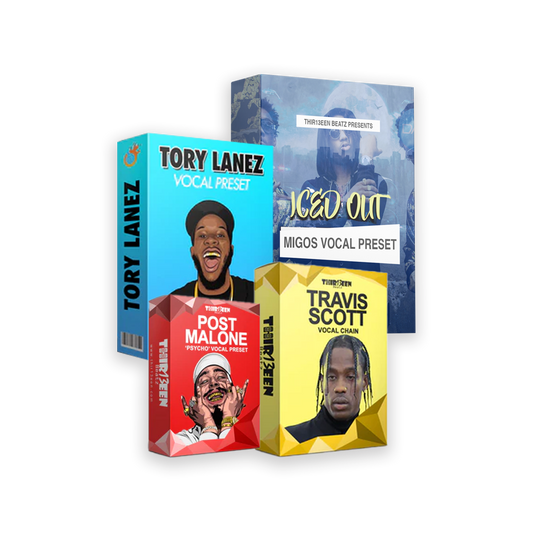
If you want these effects in one click, our Vocal Effects Variety Pack for GarageBand ($25) loads creative presets such as Auto-Tune style tuning, telephone and heavy reverb sounds. Single effects are also sold on their own, for example the Cellphone Effect preset ($10) and the Chopped and Screwed preset ($10). The single presets use GarageBand's built-in effects, so you can open them and change any setting from this page.
For clean lead vocal sounds, see the Vocal Preset Mega Bundle for GarageBand. To install any preset, follow our GarageBand vocal presets install guide.
FAQ
How do I add vocal effects in GarageBand?
Select the vocal track. Pick a voice patch in the Library for a fast result, or open Smart Controls, click Plug-ins and add effects such as Channel EQ, Compressor and Overdrive. Then use the Track Echo and Track Reverb knobs for space.
Does GarageBand have voice effects like robot or telephone?
Yes. Strong pitch correction gives a robotic tuned voice. Channel EQ with the low cut at about 400 Hz and the high cut at about 3 kHz, plus a little Overdrive, gives a telephone voice. Both are built in and free.
Can I use vocal effects in GarageBand on iPhone or iPad?
GarageBand on iPhone and iPad has its own effects and controls, which differ from the Mac version. We have not tested every step on mobile, so check Apple's GarageBand help for your device.
Why does my vocal effect sound bad in GarageBand?
Most problems come from too much effect or a poor recording. Record dry at a safe level, add a clean EQ and compressor first, then add the effect with a low mix and raise it slowly.
Are there vocal samples in GarageBand?
GarageBand includes Apple Loops. Search the Loop Browser for "vocal" to see which vocal loops your version has. Vocal presets are different: they process your own voice and contain no recorded vocals.
Keep learning
Read the complete guide to GarageBand vocals, the best GarageBand vocal presets and the vocal EQ cheat sheet. For a free start point, see our free vocal presets for Logic Pro and GarageBand.